


If you hold RSUs with Fidelity (like many tech employees at Microsoft, Amazon, or Apple), those shares typically sit idle after they vest. To diversify globally or invest through Paasa, you’ll first need to move the proceeds — and the process is straightforward once you know the steps.
Step 1: Log in to Your Fidelity Stock Plan Account
Go to [Fidelity Stock Plan Services](https://nb.fidelity.com/) and sign in.
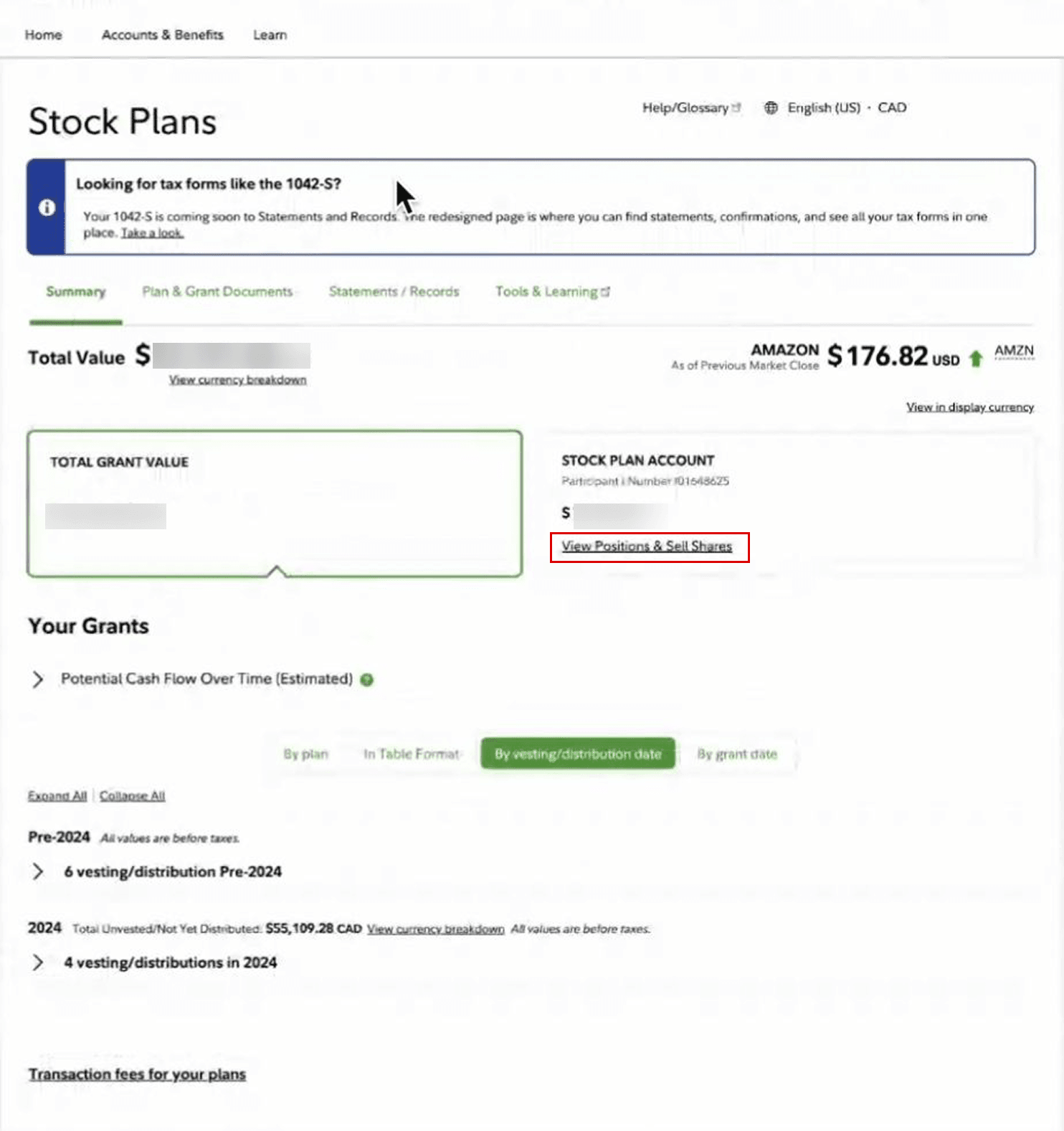
From the dashboard, click “Stock Plan Account” to view your RSU positions.
Step 2: View Positions and Initiate a Sale
Under your Stock Plan Summary, select the company whose RSUs you’d like to sell.
Click “Sell Shares” and follow the on-screen instructions.
If you’re selling only part of your holdings, you can specify the quantity.
Note: Fidelity may require you to sell your vested RSUs first before allowing a cash transfer.
Step 3: Update Bank Transfer Instructions
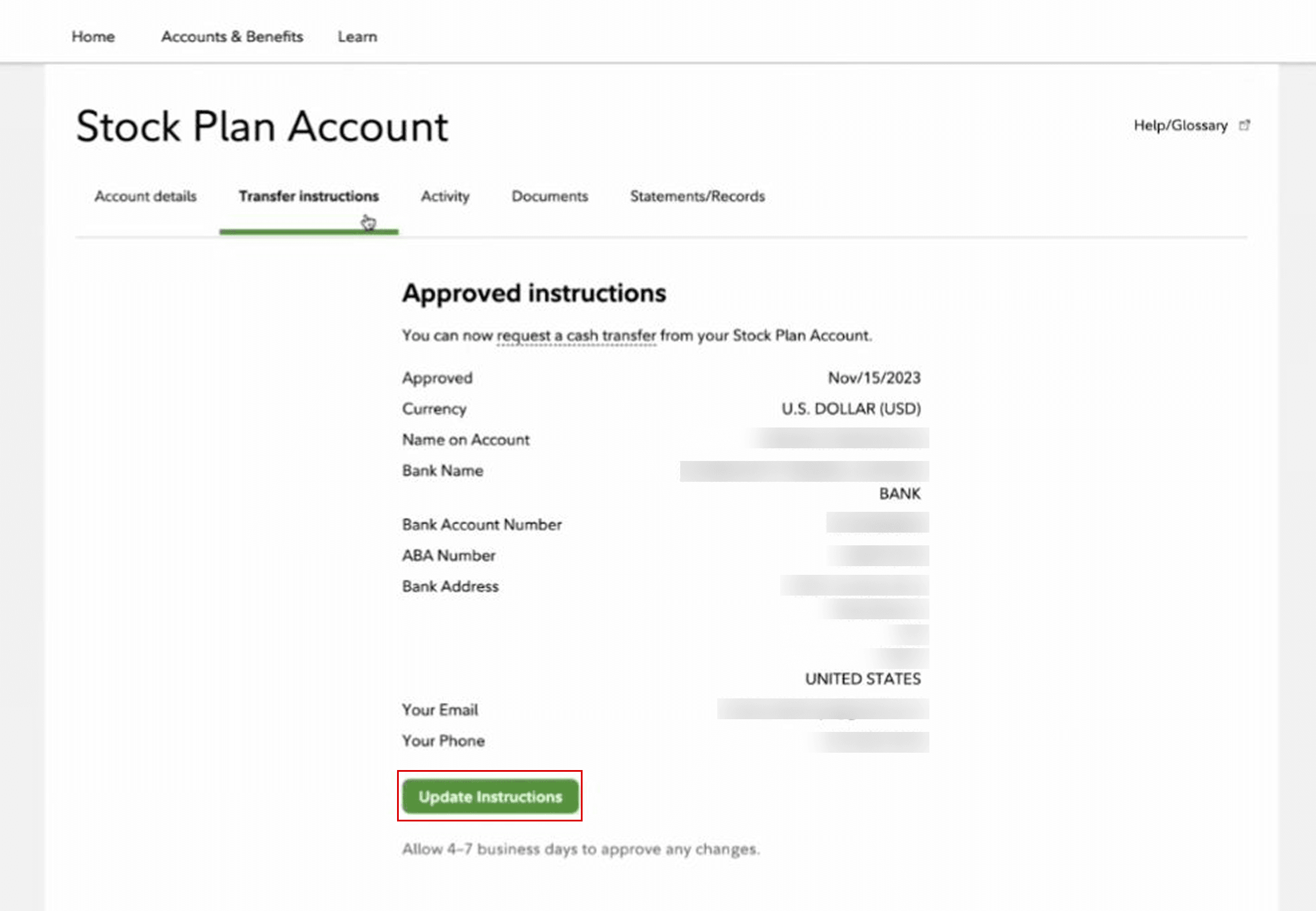
After your shares are sold and cash is available, you’ll set up your bank transfer destination.
- Go to “Update Instructions”
- Choose “Add New Bank Account”
This ensures your proceeds can move directly into your Paasa account.
Step 4: Confirm Your Email and Mobile
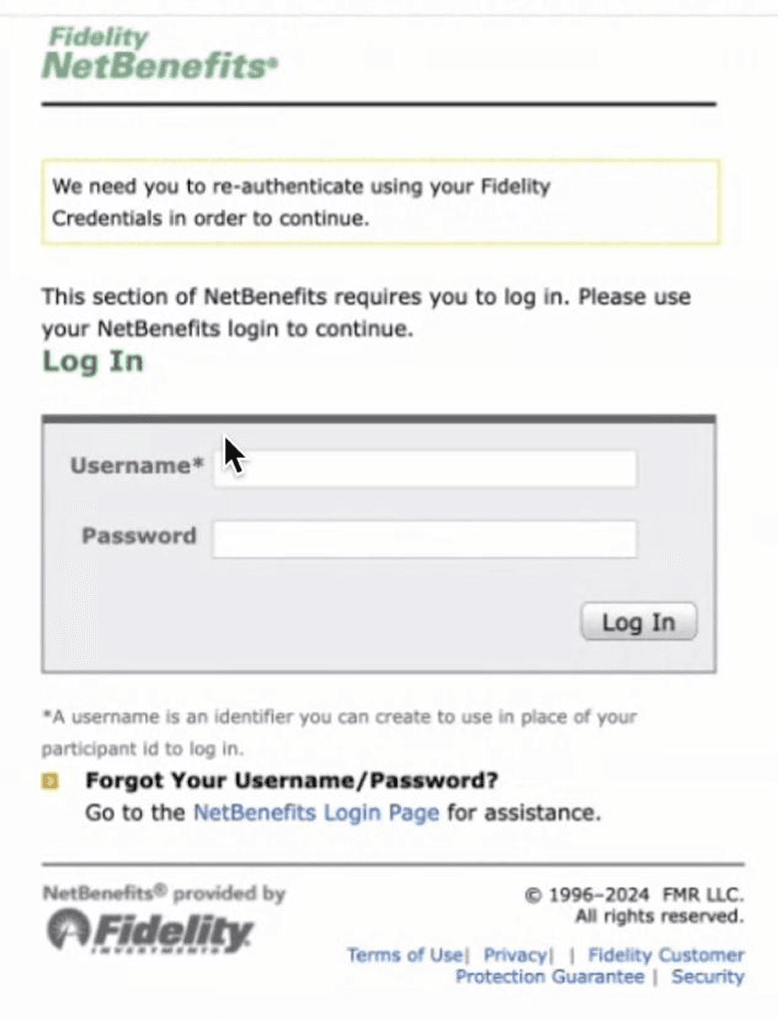
Fidelity will verify your login details.
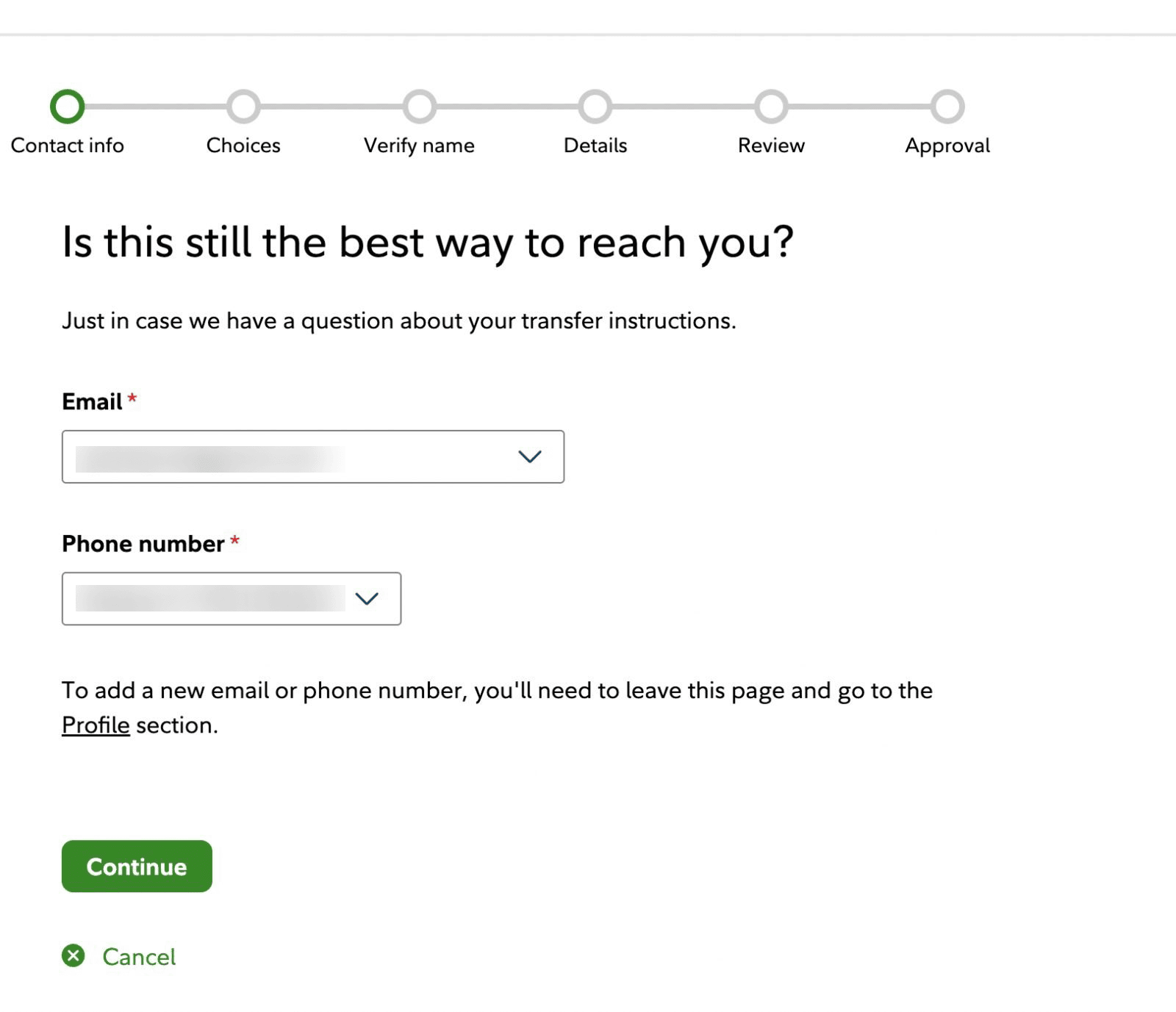
Ensure your email and mobile number are current to receive the approval confirmation.
Step 5: Select “Non-bank” as the Transfer Type
Choose “Transfer to a a non-bank financial instituition” instead of a physical check or wire to a bank.
Step 6: Add Your Paasa Account Brokerage Details
Enter the Paasa-linked account details (you’ll receive these when your account is approved).
Typical format:
- Account Holder Name: Your full legal name
- Bank Name: Interactive Brokers LLC
- Account Type: Checking
- Routing Number: 021000089 (for USD transfers)
- Account Number: [Provided by Paasa]
- Bank Address: One Pickwick Plaza, Greenwich, CT 06830, USA

Step 7: Review and Submit
Double-check all entered details.
Fidelity will show a preview of the linked account — confirm and submit.

Step 8: Wait for Approval
Fidelity takes 1–2 business days to approve new bank details.
You’ll receive an email once the account is verified.

Step 9: Transfer the Funds
Once approved, return to your Stock Plan Account → Transfer.
Enter the amount you’d like to move and confirm the transfer to your Paasa account.

Step 10: Invest Through Paasa
Once the funds arrive, they’ll reflect in your Paasa dashboard.
From there, you can:
- Allocate across global ETFs (US, UK, EU, or UCITS)
- Automate diversification and rebalancing
- Protect against estate tax exposure

Summary
- Log in to Fidelity Stock Plan Services
- Sell your vested RSUs
- Add Paasa (Interactive Brokers) bank details
- Wait for approval
- Transfer proceeds
- Start investing globally through Paasa
Important Notes
- Fidelity does not support direct in-kind transfer of RSUs; only cash transfers.
- Always verify account details with Paasa before submitting.
- If you’re remitting from India, transfers must comply with LRS (Liberalised Remittance Scheme) limits.
Need Help?
Our advisory team can walk you through the Fidelity interface and verify details before you initiate the transfer.
Write to us at support@paasa.in or reach your Paasa advisor directly in-app.

