


If your company’s RSUs are held with Morgan Stanley StockPlan Connect, you can easily transfer proceeds from vested shares to your Paasa global investment account. This allows you to diversify beyond your employer stock and invest across US, UK, and UCITS ETFs — directly from your RSU earnings.
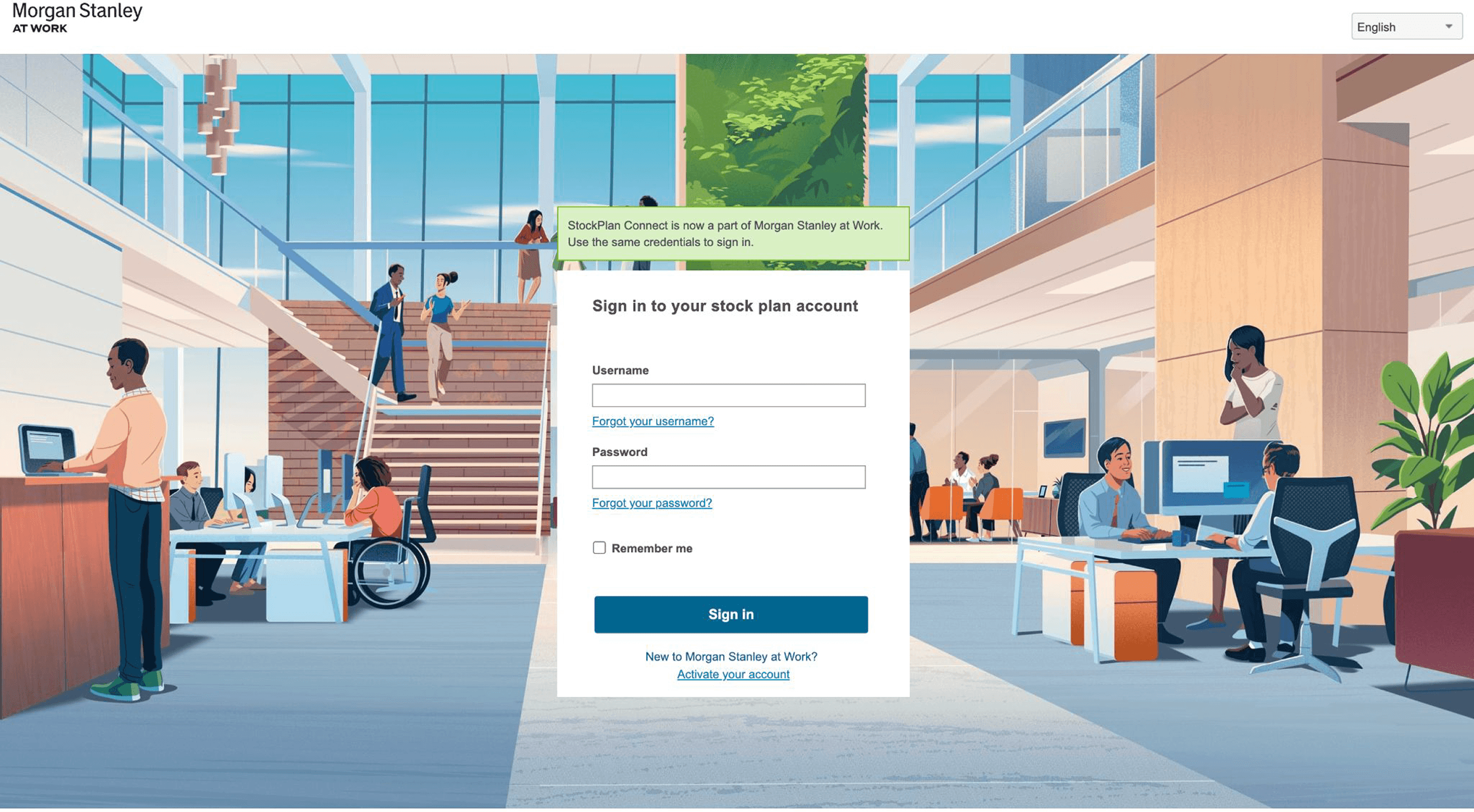
Step 1: Log in to Your Morgan Stanley StockPlan Connect Account
Visit stockplanconnect.com and sign in using your company credentials or verification email.
Step 2: Add Your Paasa Banking Information
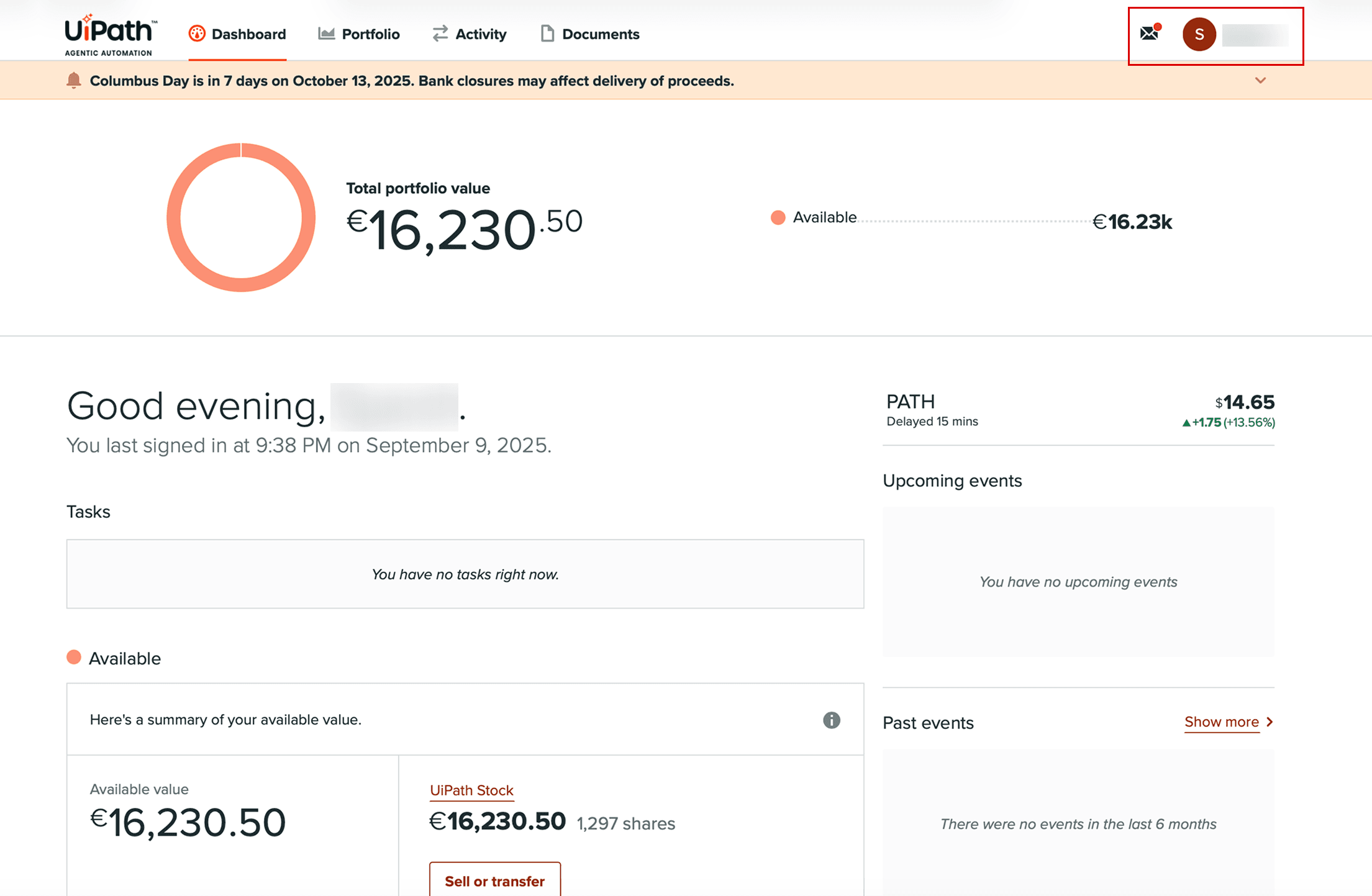
a) Go to Your Profile
Click your profile icon at the top right corner and select ‘Manage Banking Information’.
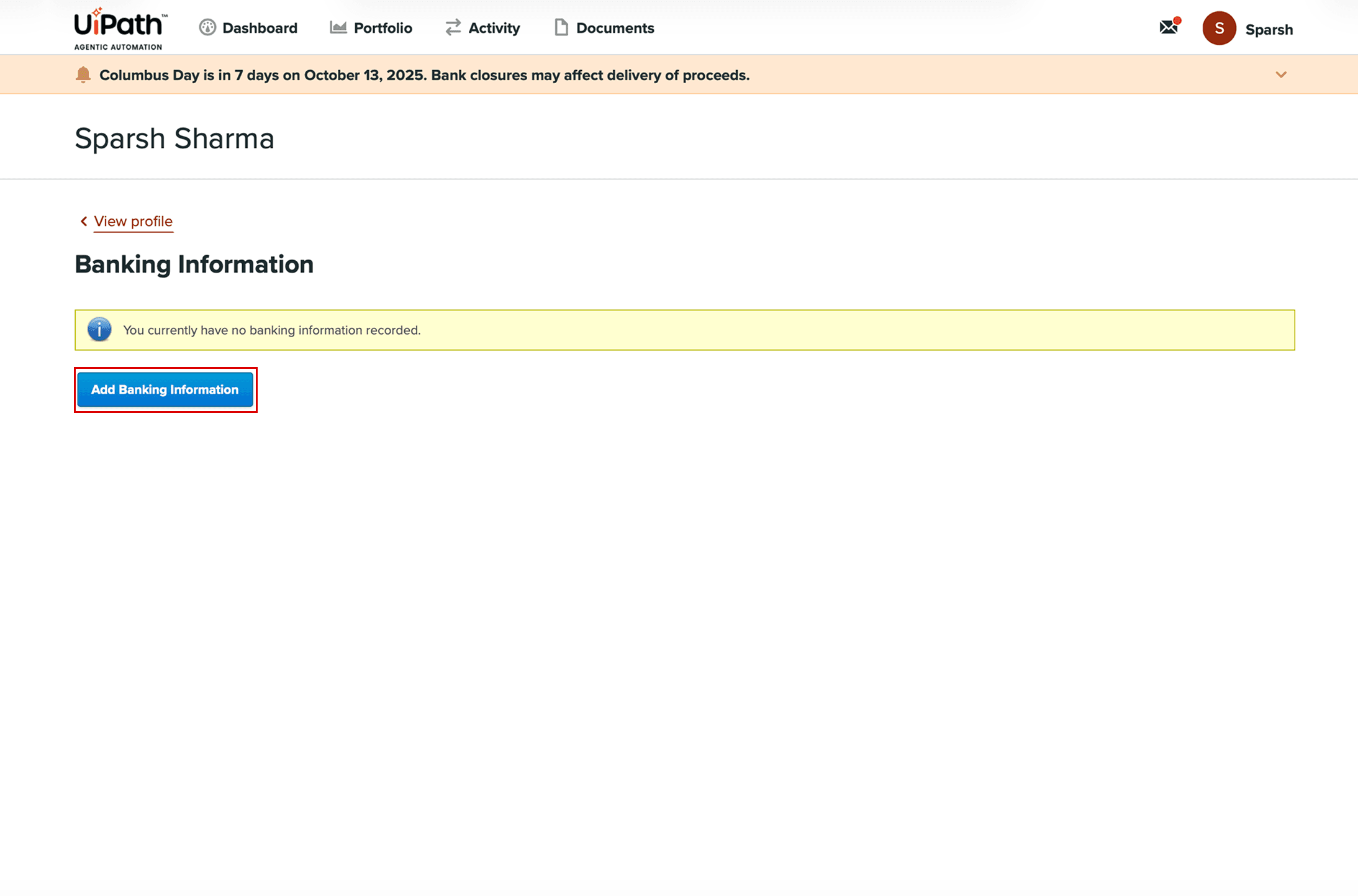
b) Click “Add Banking Information”
You’ll see your existing accounts (if any). Choose “Add New Banking Information.”
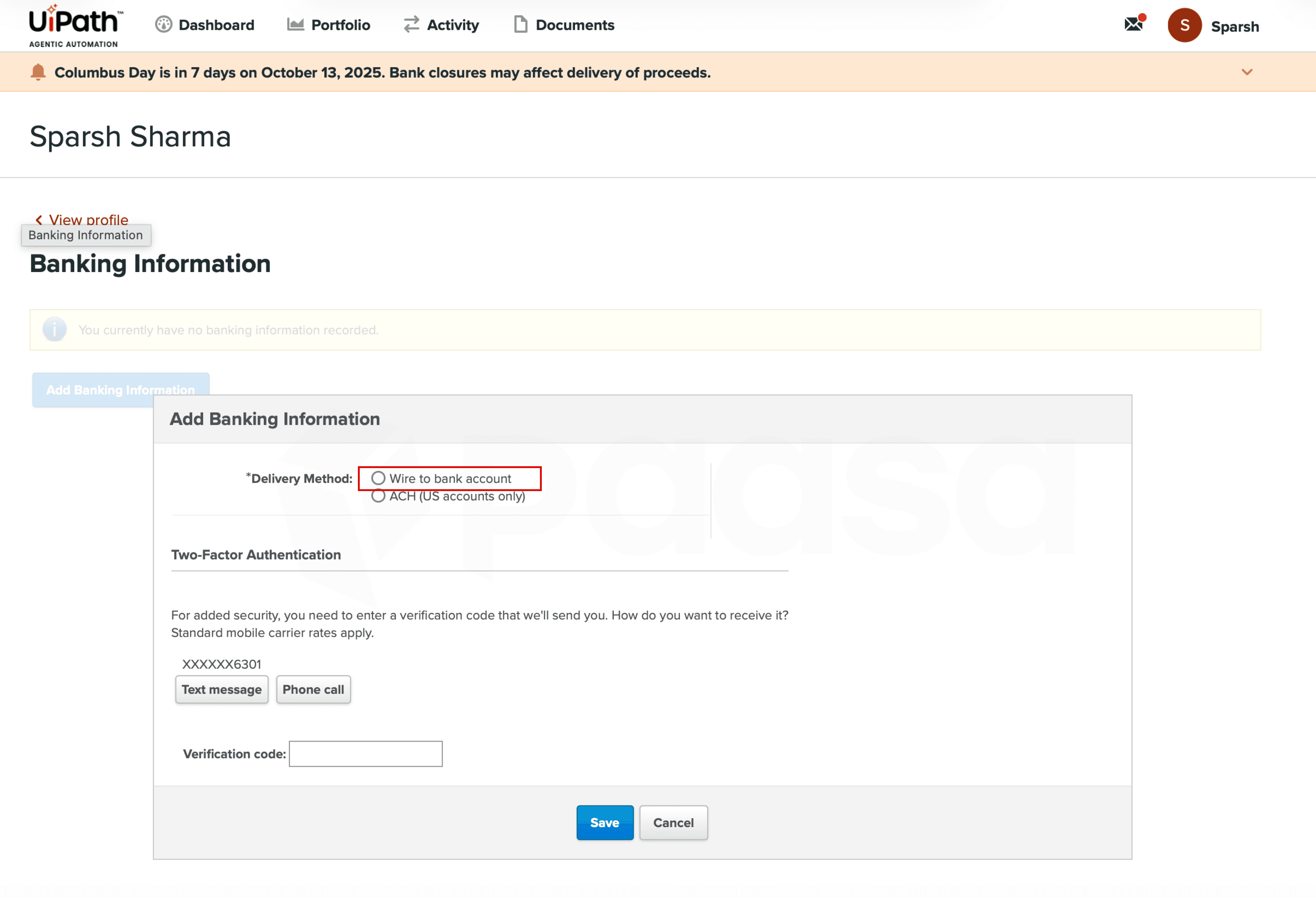
c) Select “Wire to Bank Account”
Under Payment Type, select Wire to Bank Account.
d) Select “US Bank Account”
Even if you’re outside the US, choose this option — your Paasa account is held with Interactive Brokers LLC, a US-based brokerage.
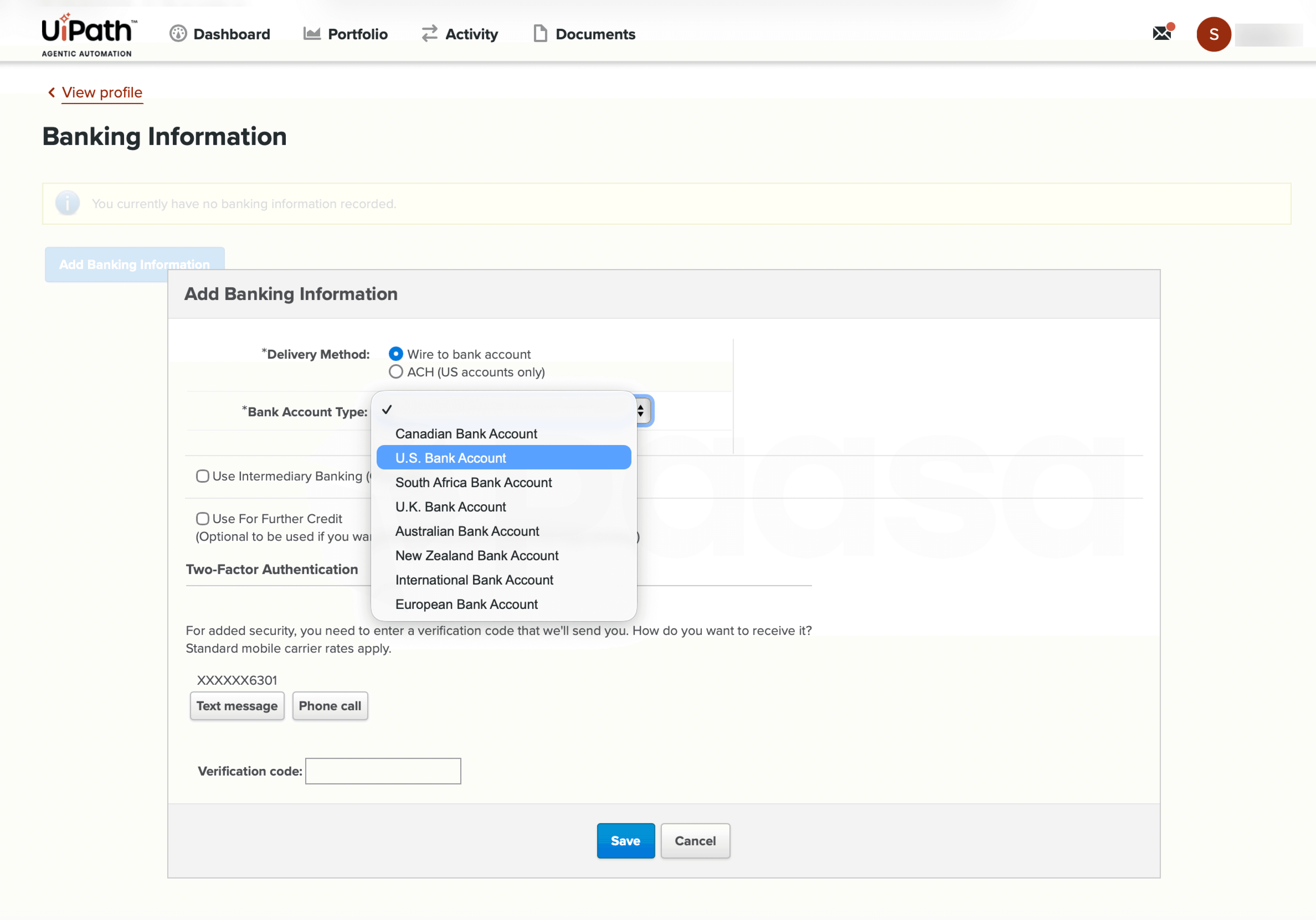
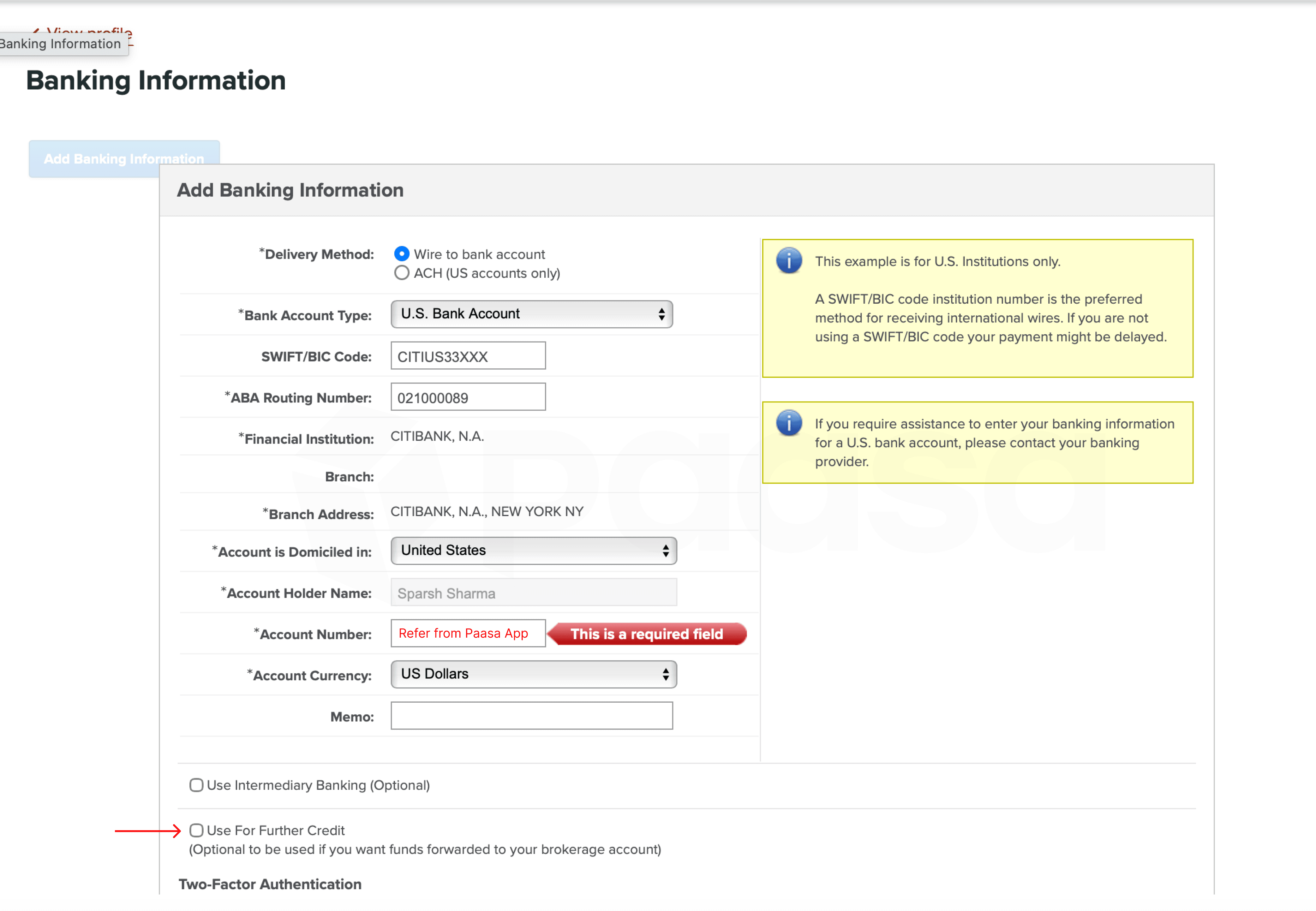
e) Enter Banking Details
Fill in the fields exactly as shown below:
- Bank Name: Citibank N.A.
- Bank Address: 388 Greenwich Street, New York, NY 10013
- Account Name: Interactive Brokers LLC
- Routing Number: 021000089
- Account Number: [Provided by Paasa]
f) Reference / For Further Credit
Tick the box for “Use for Further Credit”— this ensures your funds reach your Paasa sub-account.
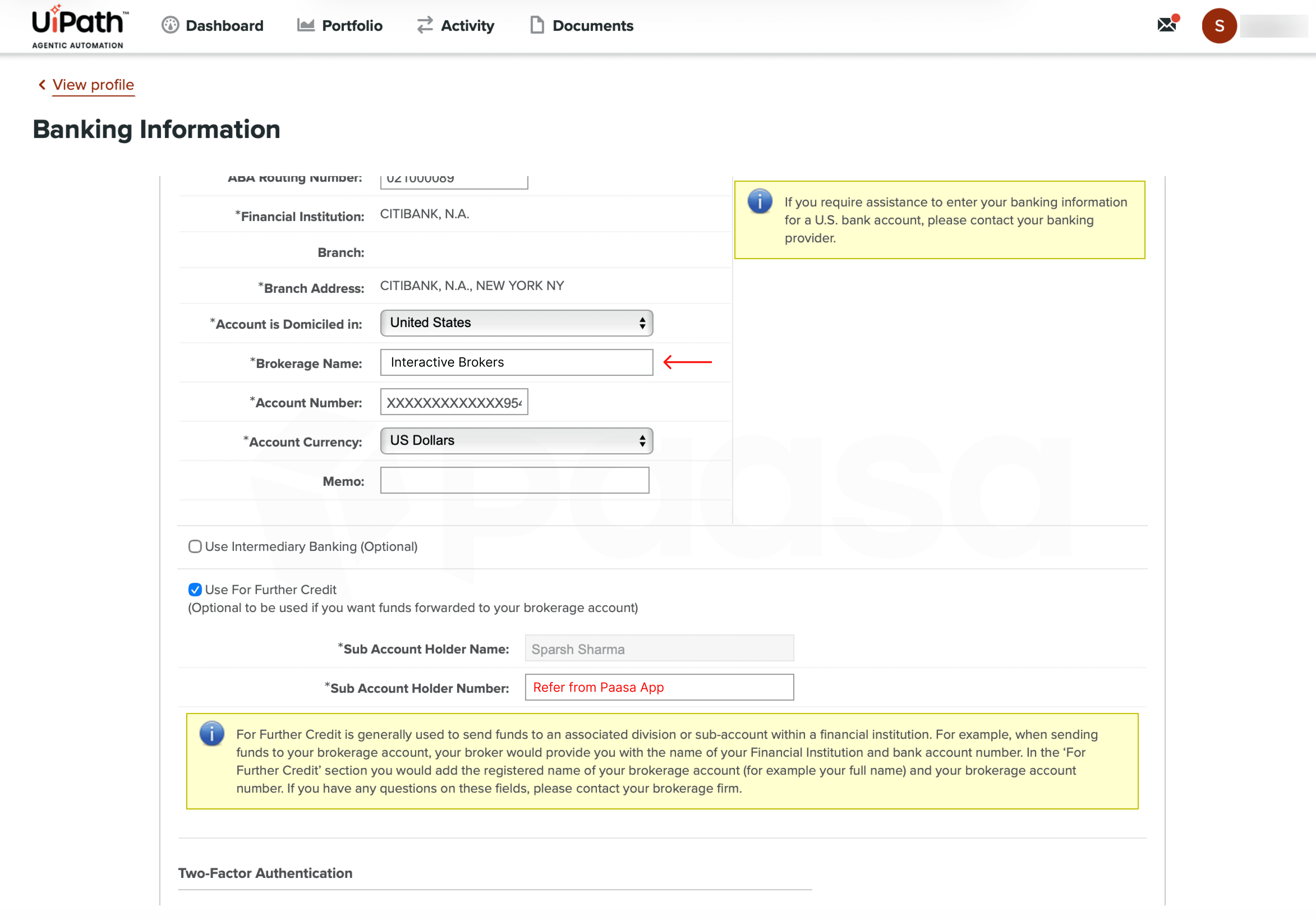
g) Enter Brokerage Details
Fill in the fields exactly as shown below:
- Account Number: [Provided by Paasa]
- Brokerage Name: Interactive Brokers
- Account Currency: US Dollars
- Sub Account Holder Number: [Same as Account Number]
Step 3: Confirm and Save
After entering the details, click Save.
Morgan Stanley may ask you to complete 2FA verification before approving the new banking information.
Step 4: Sell Your RSUs
Once your banking details are added:
1. Go to Portfolio → Holdings
2. Click “Sell or Transfer” beside your vested shares
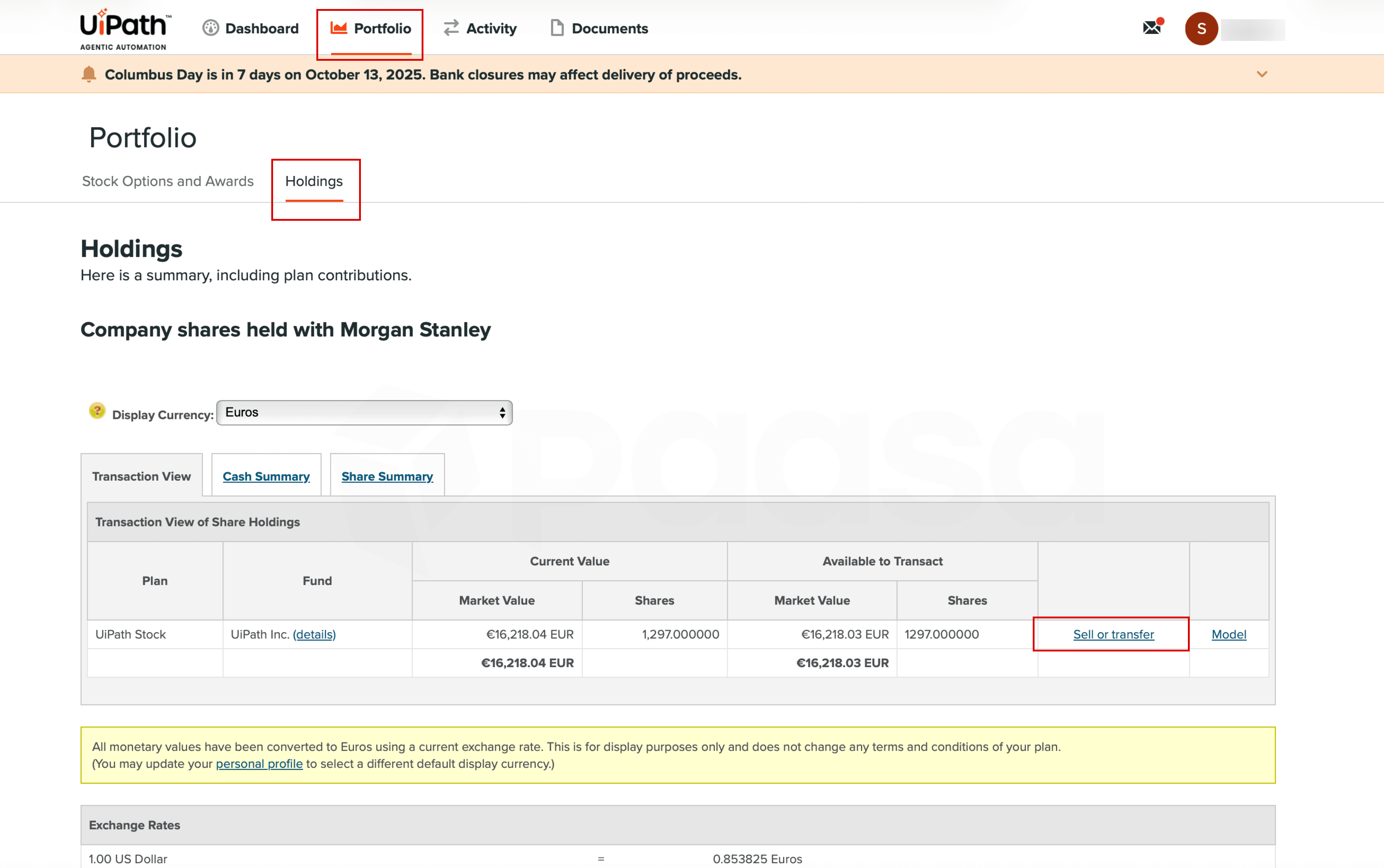
3. Choose the number of shares to sell
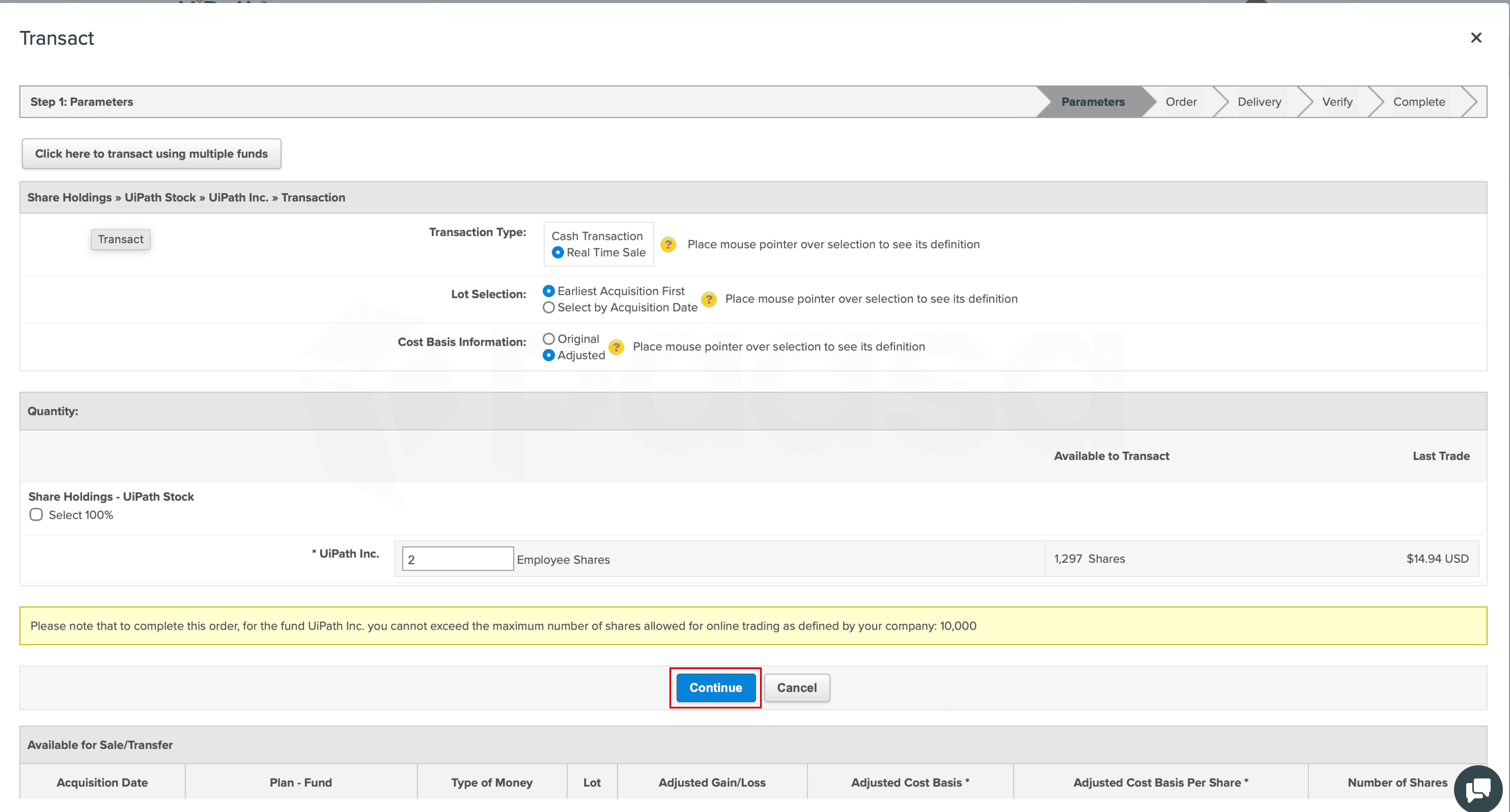
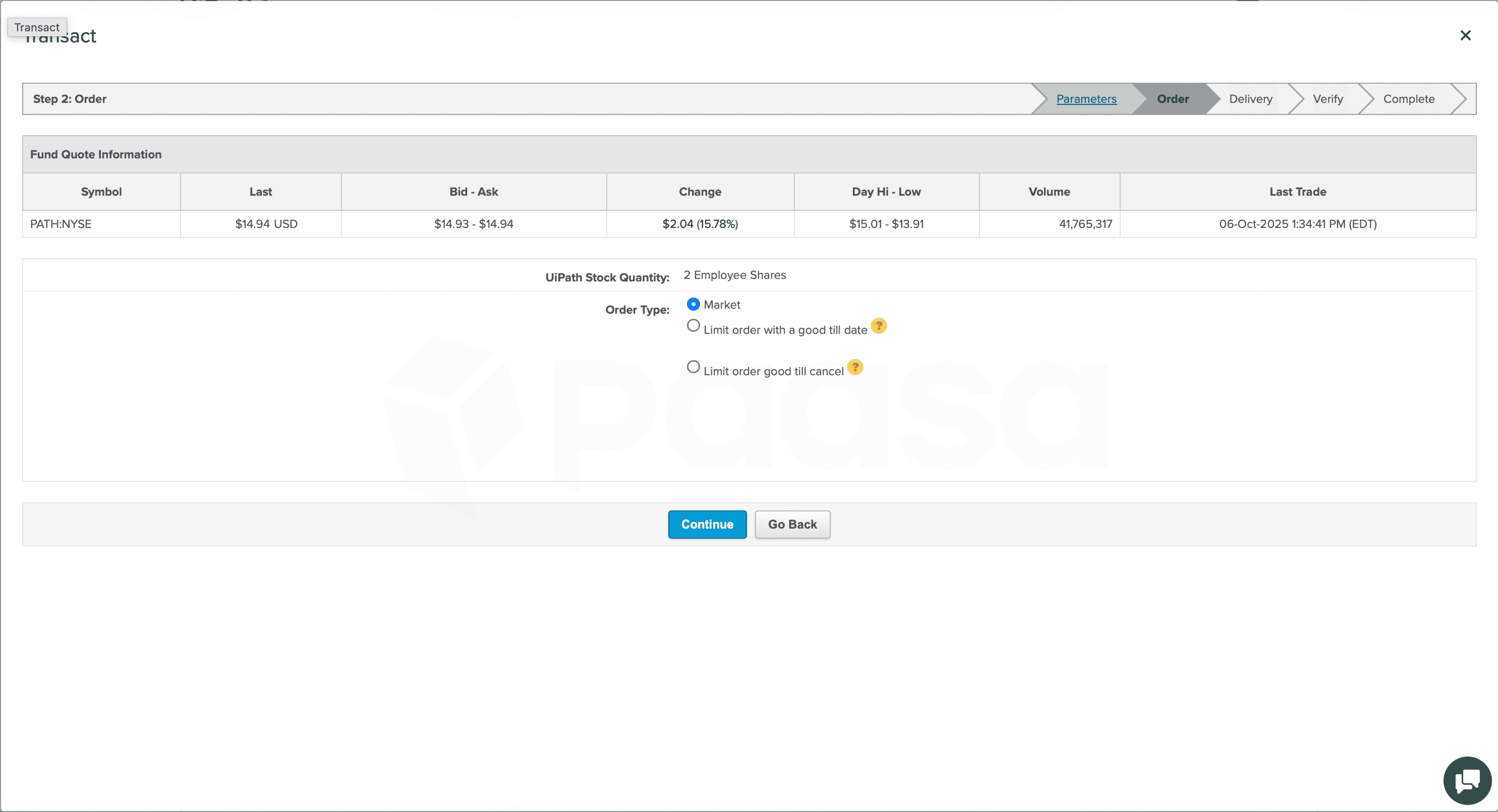
4. Select your Order Type (usually Market Order)
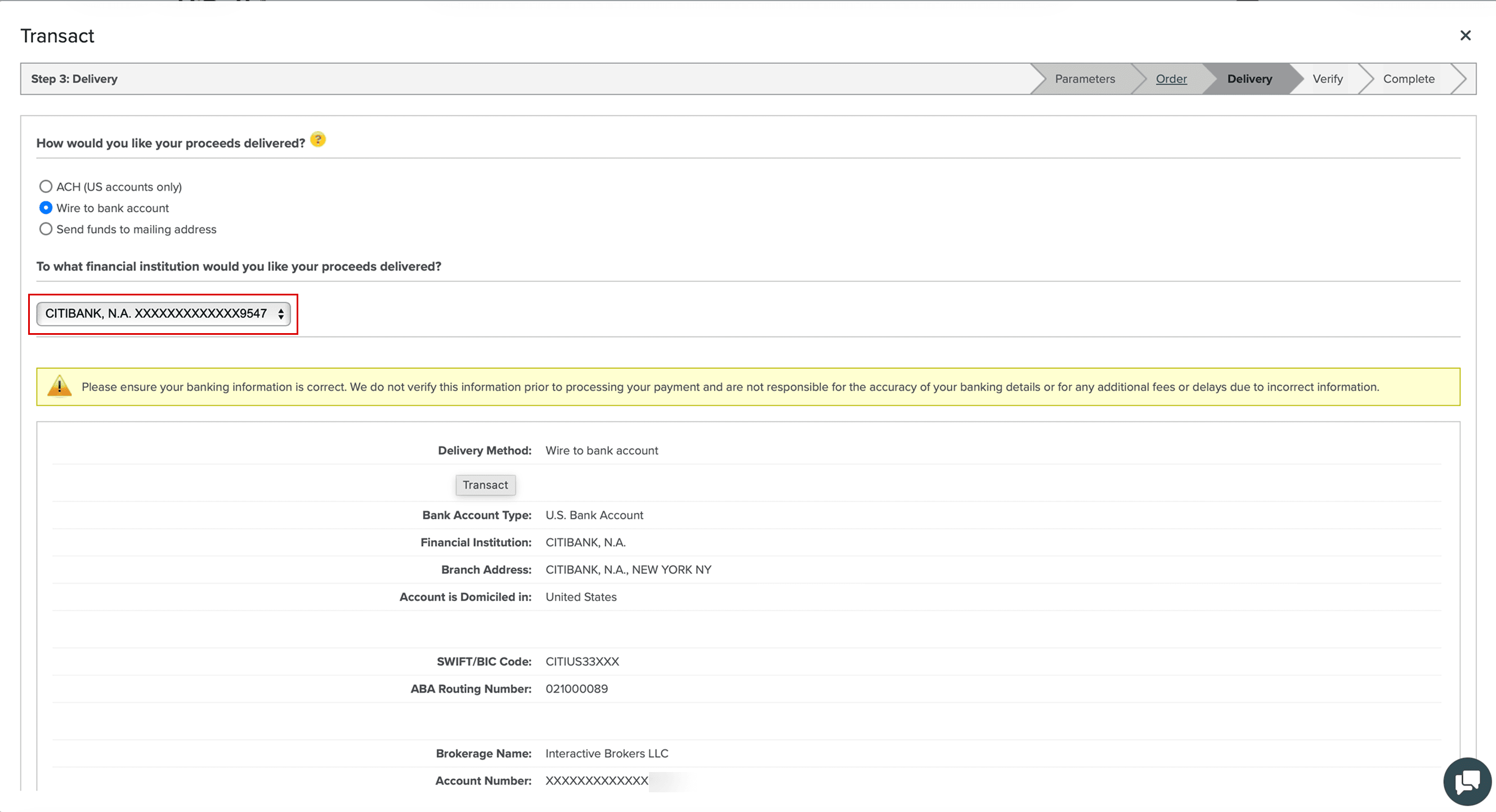
5. Select your recently added Paasa account as the delivery destination.
5. Review the Verify step and Confirm Transaction
Your RSUs will be sold, and the proceeds will appear as cash within your Morgan Stanley StockPlan account.
Step 6: Wait for Funds to Arrive
Wire transfers typically take 2–3 business days to reach your Paasa-linked Interactive Brokers account.
Once received, funds will automatically appear in your Paasa app.
Summary
1. Log in to Morgan Stanley StockPlan Connect
2. Add Paasa (Interactive Brokers) bank details
3. Sell your RSUs
4. Wire proceeds to your Paasa account
5. Start investing globally with Paasa
Notes
- Morgan Stanley only supports cash transfers (not direct share transfers).
- Always confirm your Paasa account number before submitting the wire.
- If you’re remitting from India, ensure your transfer aligns with RBI’s LRS guidelines.
Need Assistance
If you’d like our team to walk you through your Morgan Stanley dashboard before initiating the transfer or have any questions around tax or FEMA compliance, reach out at support@paasa.com or directly message your Paasa advisor.

